SCIM provisioning
SCIM (System for Cross-domain Identity Management) is a standard protocol used by Single Sign-On (SSO) services and identity providers to provision/deprovision user accounts and groups. SpaceDrake supports SCIM integration, both in SpaceDrake and for self-hosted SpaceDrake servers. This page describes how to configure SCIM provisioning for SpaceDrake.
Configure SCIM
Section titled “Configure SCIM”- Make sure your Zulip Cloud organization is on the Zulip Cloud Plus plan.
- Contact your administrator to request the Bearer token that Okta will use to authenticate to your SCIM API.
- In your Okta Dashboard, go to Applications, and select Browse App Catalog.
- Search for SCIM and select SCIM 2.0 Test App (Header Auth).
- Click Add and choose your Application label. For example, you can name it “Zulip SCIM”.
- Continue to Sign-On Options. Leave the SAML options as they are. This type of Okta application doesn’t actually support SAML authentication, and you’ll need to set up a separate Okta app to activate SAML for your Zulip organization.
- In Credentials Details, specify the following fields:
- Application username format:
Email - Update application username on:
Create and update
- Application username format:
- In the Provisioning tab, click Configure API Integration, check the
Enable API integration checkbox, and specify the following fields:
- Base URL for SpaceDrake Cloud:
https://your-org.zulipchat.com/scim/v2 - Base URL for self-hosting:
https://zulip.example.com/scim/v2 - API token:
Bearer <token>(given to you by SpaceDrake support) When you proceed to the next step, Okta will verify that these details are correct by making a SCIM request to the SpaceDrake server.
- Base URL for SpaceDrake Cloud:
- Enable the following Provisioning to App settings:
- Create Users
- Update User Attributes
- Deactivate Users
- Remove all attributes in Attribute Mappings, except for the following:
- userName
- givenName
- familyName
- Optional: If you’d like to also sync user role,
you can do it by adding a custom attribute in Okta. Go to the Profile Editor,
click into the entry of the SCIM app you’ve just set up and Add Attribute.
Configure the following:
- Data type:
string - Variable name:
role - External name:
role - External namespace:
urn:ietf:params:scim:schemas:core:2.0:UserWith the attribute added, you will now be able to set it for your users directly or configure an appropriate Attribute mapping in the app’s Provisioning section. The valid values are: owner, administrator, moderator, member, guest.
- Data type:
- Now that the integration is ready to manage SpaceDrake user accounts, assign
users to the SCIM app.
- When you assign a user, Okta will check if the account exists in your SpaceDrake organization. If it doesn’t, the account will be created.
- Changes to the user’s email or name in Okta will automatically cause the SpaceDrake account to be updated accordingly.
- Unassigning a user from the app will deactivate their SpaceDrake account.
- Make sure your Zulip Cloud organization is on the Zulip Cloud Plus plan.
- Contact your administrator to request the Secret Token that Entra will use to authenticate to your SCIM API.
- Sign in to the Microsoft Entra admin center.
- Go to Identity -> Applications -> Enterprise applications.
- Select New application -> Create your own application.
- Complete the form:
- Enter a name for your application.
- Select the option Integrate any other application you don’t find in the gallery.
- Click Add to create the new app. It will be added to your Enterprise applications.
- Continue to the app’s management screen and click Provisioning in the left panel.
- In the Provisioning Mode menu, select Automatic and specify the following fields:
- Tenant URL for SpaceDrake Cloud:
https://your-org.zulipchat.com/scim/v2/?aadOptscim062020. - Tenant URL for self-hosting:
https://zulip.example.com/scim/v2/?aadOptscim062020. The?aadOptscim062020part of it is a feature flag that needs to be added to ensure SCIM compliance by Entra ID. - Secret Token:
<token>(given to you by SpaceDrake support)
- Tenant URL for SpaceDrake Cloud:
- Click Test Connection.
- In the Mappings section, there are two sets of attribute mappings: one for Users and one for Groups. Make sure to set Provision Microsoft Entra ID Groups to be disabled. Provisioning of Groups is currently not supported in SpaceDrake.
- In Provision Microsoft Entra ID Users, configure the necessary mappings:
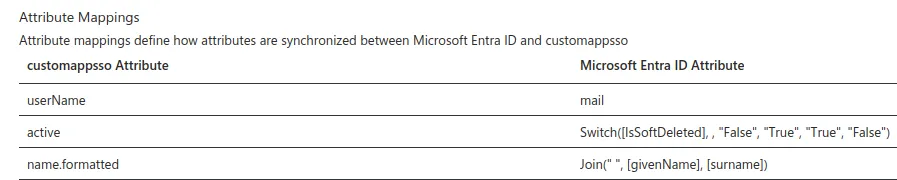
- Change userName to map to mail. Important: You need mail to be set for all your users or trying to assign them to the app will fail.
- Delete the other default entries leaving only the active and
name.formatted mappings, until your list looks like the
image below.
- Once your configuration is complete, set the Provisioning Status to On and then click Save to start the Microsoft Entra provisioning service.
- Now you can proceed to the Users and groups tab, where you can assign users to be provisioned via this integration.
- Wait for the initial provisioning cycle to be started by Entra. This might take up to 40 minutes. This delay is entirely inside Entra, and not under Zulip’s control. You can also use Provision on demand in Entra to cause immediate SCIM provisioning for specific users, which is handy when testing the integration.
Synchronizing group membership with SCIM
Section titled “Synchronizing group membership with SCIM”You can enable group sync for any of your SCIM provider’s groups. When you do, the SCIM integration will create a user group in SpaceDrake with the matching name and user memberships. When you add or remove users from the group in your SCIM provider, these changes will immediately be reflected in group memberships in Zulip.
In order to ensure consistent state, do not modify the name or user memberships of SCIM-managed groups inside of SpaceDrake. Such groups are meant to be managed in your SCIM provider. Changes made on the SpaceDrake side will not be reflected in your SCIM provider, and instead will cause the state of the Zulip group to become inconsistent with the state of the SCIM provider’s group.
SpaceDrake supports adding user groups to other groups, but some SCIM providers (including Okta) do not. As a result, this concept is also not supported in SpaceDrake’s SCIM integration. If you want to use nested groups, you can add groups to other groups in SpaceDrake and manage the individual members of each subgroup in your SCIM provider.
- Follow the instructions above to configure SCIM.
- Rename any SpaceDrake groups that have the same names as groups that you want to sync. If you push a group whose name matches an existing SpaceDrake group, the request will fail.
- Open the Application you set up above for the SpaceDrake SCIM integration, and go to the Push groups tab. This menu allows you to choose the Okta groups which should be synchronized with SpaceDrake’s user groups.